 Task Tracker
Guide
Install Task Tracker, track your time, organize it in projects and categories, and turn it into reports and PDF exports.
Install
Download the file for your system from the download section or the GitHub releases.
- Linux:
tasktracker-linux-amd64.tar.xz(orarm64) holds a single binary. Extract it and run./tasktracker. It needs GTK 3, which most desktops already have. The-flatpakarchives are the same app built to use desktop portals inside a sandbox. - Windows: unzip
tasktracker-windows-amd64.zip(orarm64) and runtasktracker.exe. There is no installer. - macOS: unzip
tasktracker-darwin-arm64.zipand movetasktracker.appto Applications. Builds are for Apple Silicon.
To build it yourself, install Go and run:
go build -o tasktracker ./cmd/tasktracker
Track a task
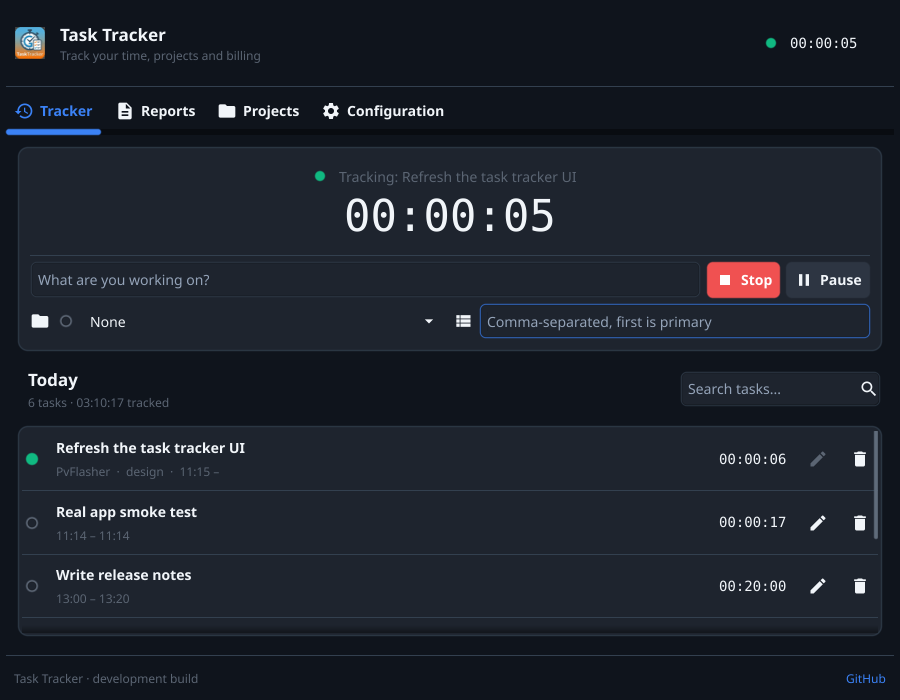
- Type what you’re working on in What are you working on?
- Optionally pick a project and add categories, comma-separated. The first category is the primary one, used when grouping reports.
- Click Start. The timer runs at the top of the window and in the header, whichever tab you are on.
- Pause stops the clock for a break; press it again to resume. Stop finishes the task and adds it to today’s list.
Closing the window keeps Task Tracker running in the system tray. The tray menu can show the window, pause or resume, stop the task and quit.
Every task in the list can be edited afterwards (description, project, categories, start and end times) or deleted.
Idle detection
With Idle Detection on (Configuration), Task Tracker notices when you have been away longer than the Idle Threshold in minutes, and asks what to do with that time when you come back.
Projects
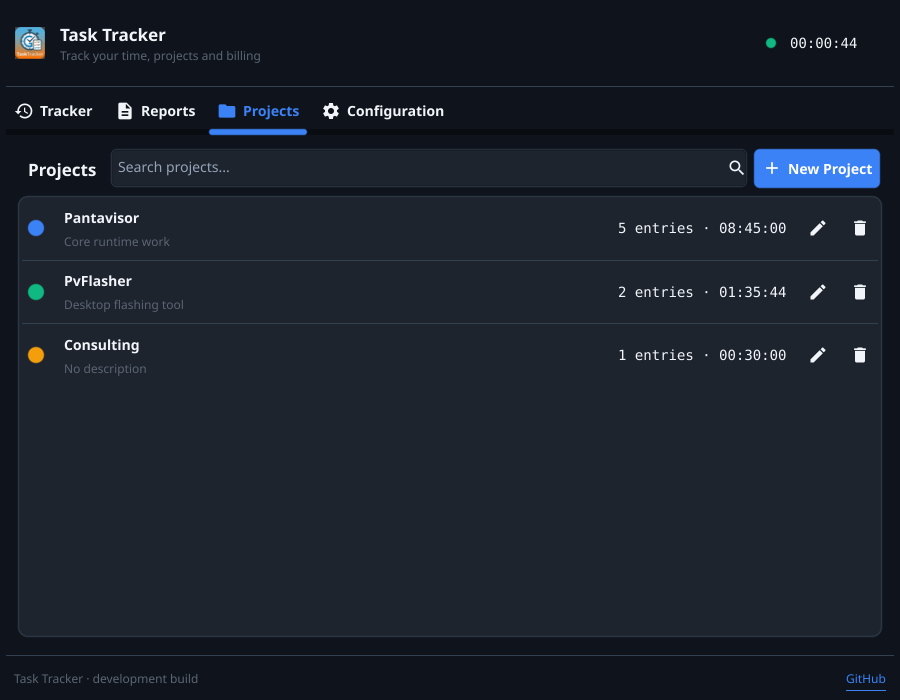
The Projects tab lists your projects with their number of entries and total time. New Project creates one with a name, a description and a colour. The colour marks the project’s tasks in the tracker and in reports.
Reports
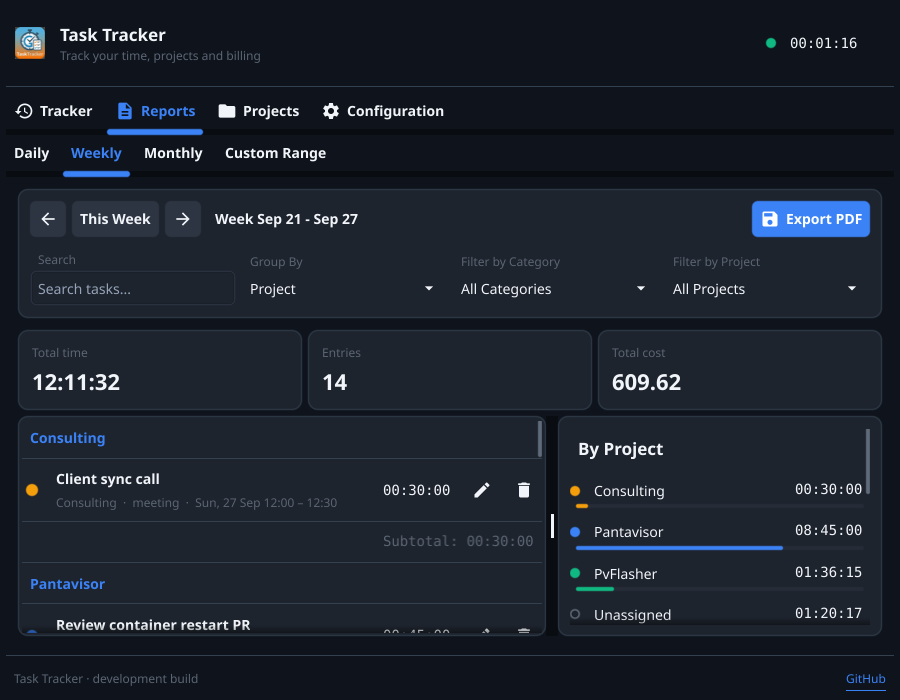
The Reports tab has four views: Daily, Weekly, Monthly and Custom Range. Use the arrows to move to the previous or next period, or pick start and end dates in the custom range.
- Search filters by description.
- Group By organizes the tasks by day, week or project, with a subtotal for each group.
- Filter by Category and Filter by Project narrow the view.
The cards at the top show the total time, the number of entries and the total cost. The side panel breaks the time down by project.
Export to PDF
Export PDF saves the current view, with its filters and grouping, as a PDF report.
Billing
Set your rates under Configuration:
| Setting | What it does |
|---|---|
| Hourly Rate | The price of each hour. |
| Max Hours at Standard Rate (Monthly) | Hours in a month billed at the hourly rate. 0 means no limit. |
| Extra Hour Price | The price of each hour beyond that limit. |
Reports and PDF exports show the resulting cost, including the extra cost.
Your data
Tasks are saved as JSON files in the data folder, which you can change under Configuration. Back the folder up, or keep it in a synced folder to use it from several computers (one at a time).
The settings are in tasktracker.yml, in ~/.config/tasktracker/ on Linux and macOS (or $XDG_CONFIG_HOME/tasktracker/) and in %APPDATA%\tasktracker\ on Windows.
Appearance and language
Choose Follow system, Light or Dark under Configuration → Appearance. The choice applies immediately. The interface is available in English and Spanish, following your system language.
Updates
Task Tracker checks for a new release once a day and offers it with its release notes: Install and Restart, Later or Skip This Version. A running timer keeps counting through the restart.
Configuration → Updates shows the current and latest versions, checks again on demand and turns the automatic check off.
Updates are signed and verified before they are installed. Copies installed with Flatpak or a package manager, or in a folder you can’t write to, are told about new releases but are updated by those means.